I understand that feeling, all that rage and frustration when repeated attempts at a fix don’t solve the problem. Console.log statements everywhere just to see which methods are being called and what finishes first. Don’t punch a hole through the screen, use a debugger instead. 🙃
The debugger is this very beautiful and sometimes under-utilized piece of technology that can be used to run a program line by line, view the state changes in all variables, stack information, and basically check the state of the entire program as it is running.
When I was working with Java as a backend, this was a no brainer. If something behaved unexpectedly, I would use the debugger to figure out what’s going on. However, with JavaScript, my first instinct would always be to put down a bunch of console.logs and run the code repeatedly to find out what was going on. I guess it was due to the stark difference between both the frontend and backend environments that I was working with at the time.
Now that I’ve moved on to TypeScript for both frontend and backend, the unified debugging experience has been very pleasant. I’ll share some ways of debugging TypeScript in this article. These methods will work for JavaScript as well. This will all be in VS Code since that is what I use but some parts in this will be similar for other IDEs. I’ll attach some links at the end that may be useful for other IDEs.
Setup
Remember, TypeScript is not what runs. It is transformed into JavaScript and that is what is executed. We need a way to map the output JavaScript to the source code. It’s quite simple. Just add “sourceMap”: true, to compilerOptions in tsconfig.json. This will tell the compiler to generate .js.map files for us. This is called a Source Map, it holds information about how the source code was transformed into the output, enabling the browser/node to reconstruct the original source and present it in the debugger.
This is what a minimal version of tsconfig would look like.
{
  "compilerOptions": {
    "target": "es5",
    "module": "commonjs",
    "rootDir": "src",
    "outDir": "build",
    "sourceMap": true
  }
}
Node-Backend
When we start a program with --inspect flag, Node will start listening for debugging client on the default host and port 127.0.0.1:9229. Then we can use any IDE to attach a debugger client to the running process and start debugging.
There are two ways to go about this. Either we let VS Code handle the entire lifecycle or we can run the program in debug mode separately and use VS Code to attach a debugger to it.
VS Code handles everything
-
For a single file program Hit F5 when the file is open. It will run the file in debug mode and that’s it. This will generally not be the case.
-
Create .vscode/launch.json in the root directory and add the following code. Replace whatever is in <>.
-
Go to the debugging/run panel, choose Launch Program from the configuration drop-down and hit run.
Attach debugger
-
Create .vscode/launch.json in the root directory and add the following code.
-
Start your app with
--inspectflag. -
Go to the debugging/run panel, choose Attach from the configuration drop-down and hit run.
Chrome-Frontend
Chrome can be started in debug mode using chrome.exe --remote-debugging-port=9222. This will tell Chrome to listen to port 127.0.0.1:9222 for debug clients. We can then use any IDE that can interface with chrome’s debugging protocol to attach a debugger to it.
There is an extension Debugger for Chrome that needs to be installed for this to work. After that there the same two ways of setting up the debugger as in Node.
Launch through VS Code
-
Create .vscode/launch.json in the root directory and add the following code. Replace whatever is in <>.
-
Go to the debugging/run panel, choose Launch Chrome against localhost from the configuration drop-down and hit run.
Attach debugger
-
Create .vscode/launch.json in the root directory and add the following code.
-
Start chrome with
--remote-debugging-port=9222and navigate to your page. -
Go to the debugging/run panel, choose Attach to localhost from the configuration drop-down and hit run.
Issues
The initial set up with chrome is a bit problematic. Setting webRoot and sourceMapPathOverrides can be a bit of a challenge. I found this thread on Github helpful in deciding those for my projects.
Using the debugger
- When the debugger is running, hover on the line number of the .ts file in VS Code. There is a dull red circle that shows up. Click on that to set breakpoints.
- When debugging there is a bar that shows up at the top next to the file names. That has commands for Step over, Step inside, Step out, Restart, Stop and Pause.
- There is a debug console in VS Code that we can use to write scripts while in debug mode to interact with the program. These run regardless of whether the debugger has stopped at a breakpoint.
Ctrl+Shift+Ywill open the Debug Console.
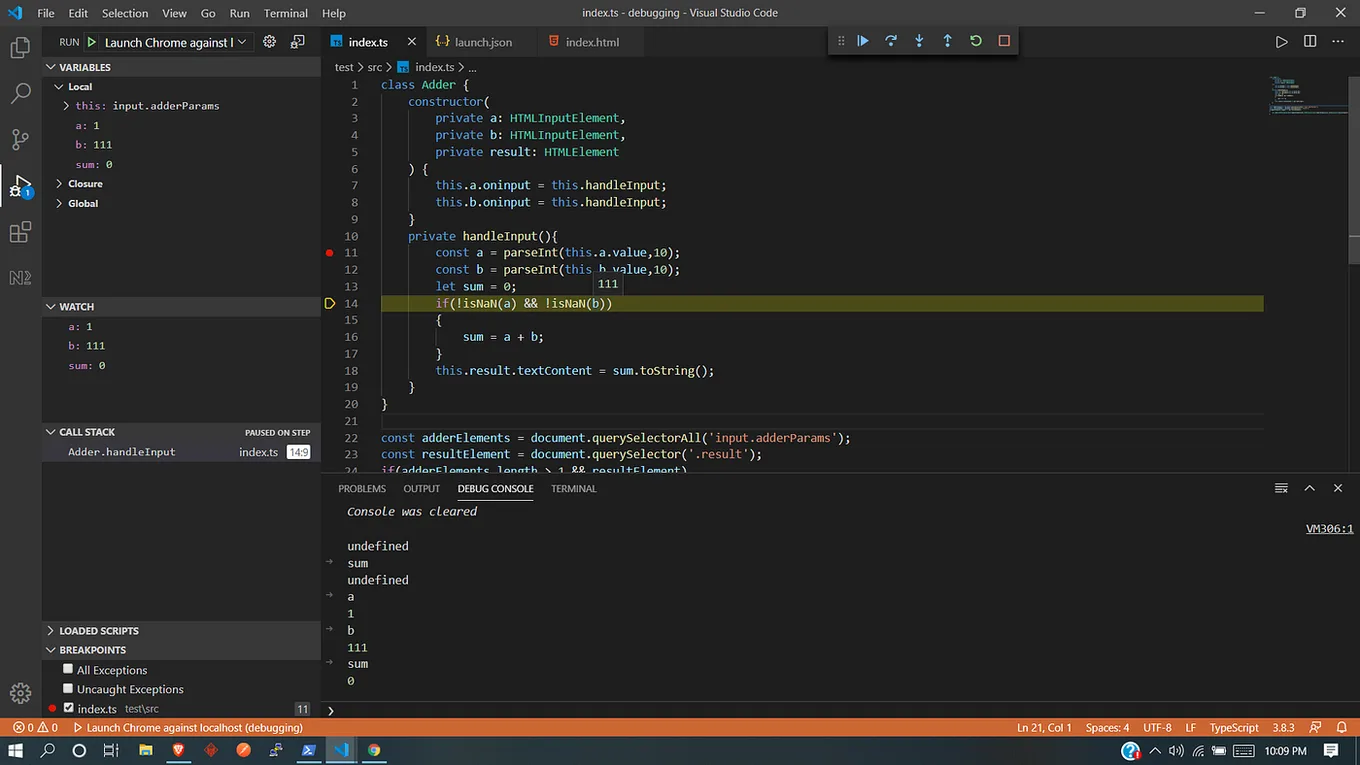
Debugger in action
Further reading: